Announcing: Image Overlays
Pick any image topic as your base feed, then composite masks, heatmaps, and model outputs on top in real time during playback.

When you are debugging perception, a raw camera stream is rarely enough on its own. You also need to see what your stack thinks is in the scene: lane masks, object tracks, traversability grids, or the output of a segmentation model.
Today we are shipping image overlays in the Image panel. Pick any supported image topic as your base feed, then add one or more overlay layers that Foxglove composites on top in real time during playback. You keep masks and heatmaps on separate topics, and tune how they are drawn from the panel settings instead of baking everything into a single video stream.
Why image overlays?
Before image overlays, comparing a mask to the camera image usually meant opening two panels side by side, or preprocessing frames so the mask was permanently merged into the pixels you logged.
With overlays you can:
- Keep recordings clean — log the camera and model outputs as separate channels and decide at review time how to view them.
- Stack multiple signals — add several overlay topics, each with its own visibility, ordering, opacity, and blend mode.
- Iterate visually — change opacity or blend mode while scrubbing time to see exactly where a detector agrees or disagrees with the sensor image.
Example: agricultural plant masking
Imagine an autonomous weeding robot. An image segmentation algorithm identifies vegetation and publishes a binary mask alongside the original camera stream.
To make this concrete, we’ve created a companion example Jupyter notebook. It walks through loading plant imagery from MCAP, generating a cleaned mask in OpenCV using a simple color filter, and logging both the original input and the resulting binary mask as separate topics with the Foxglove Python SDK. The notebook uses Foxglove’s Jupyter integration, allowing you to view the results directly within an embedded Foxglove viewer.
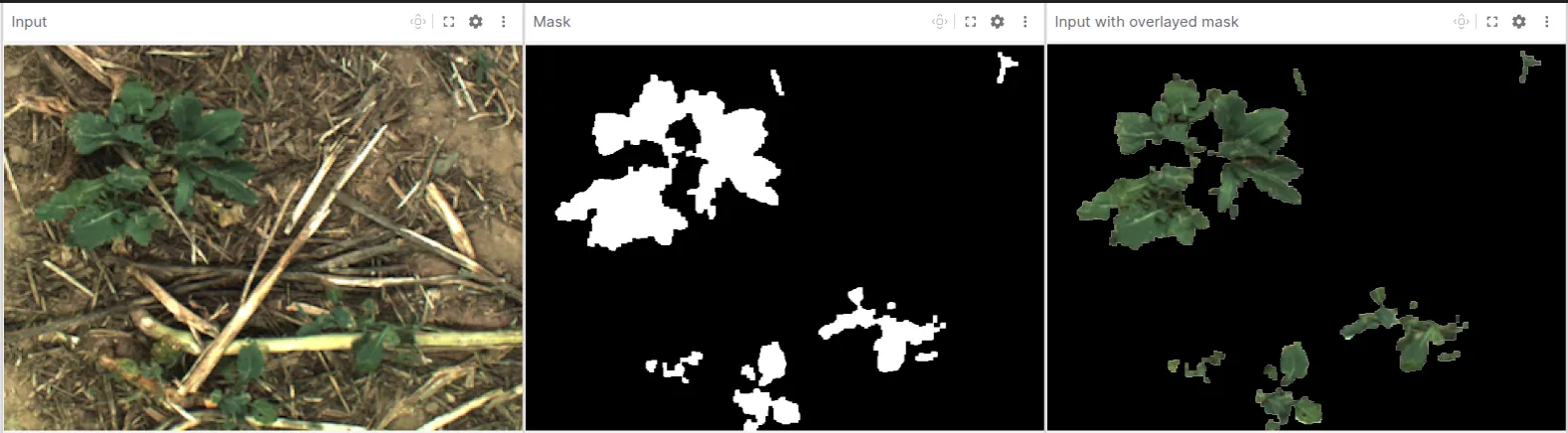
From left to right: the raw camera input, a binary vegetation mask, and the overlay — clearly showing where the color filter identifies plants in the scene.
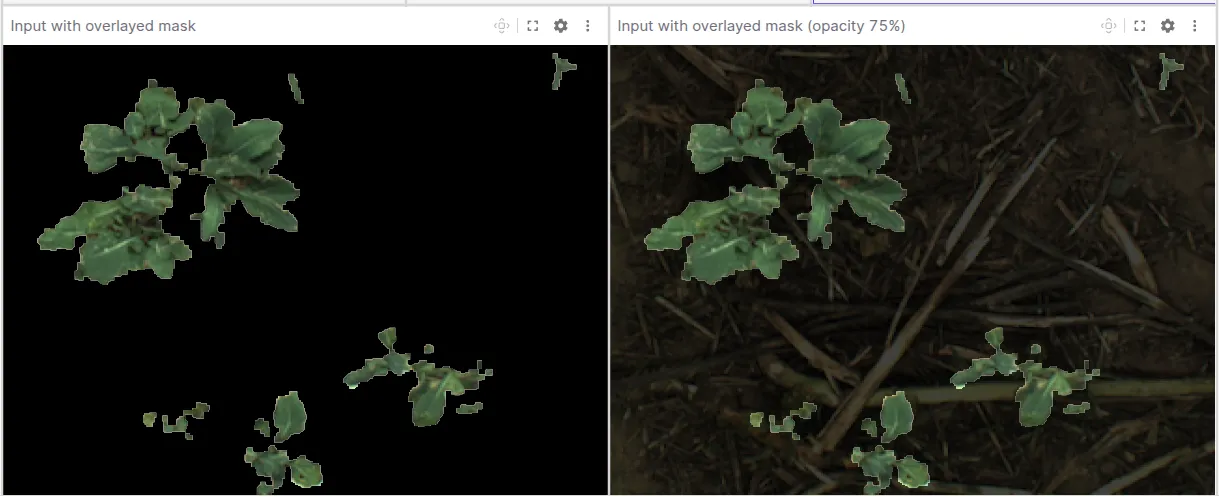
To verify that the color filter hasn’t missed any vegetation, you can lower the overlay opacity to reveal the underlying image — making it easier to spot unmasked regions. The example below shows the overlay at 100% opacity (left) and 75% (right).
How to configure image overlays
In the Image panel, open settings, find Image overlays, and use Add image overlay to attach your mask topic on top of the base camera topic.
Point the overlay at your mask topic, then adjust Opacity so you can still read texture in the base image. For Blend mode, Alpha performs standard alpha compositing using the layer opacity; Add adds overlay pixel values to the base image, which can be useful for intensity visualizations like brightness or heatmap accumulation. Use Move up / Move down to control compositing order when stacking multiple overlays.
For single-channel overlays (such as mono8), the Pixel alpha control is especially useful for classical white-on-black masks. Choose White is transparent so pixels that decode as white become fully transparent and the camera pixels show through in those regions, while non-white mask pixels stay opaque on top of the base image.
Notes
Image overlays are designed to work with aligned image data during playback. Currently:
- Image-only support — overlays work with image topics (including compressed images), but not video streams
- Aligned inputs required — overlay images must match the base image in resolution and
frame_idto ensure proper compositing
These constraints may be relaxed in the future as we expand overlay support.
Try it out
Image overlays are available now in the Image panel — see the Image panel documentation for the full reference, and try it yourself with the companion notebook.
Join our Discord community or follow us on X and LinkedIn to stay up to date on all Foxglove releases.