Announcing: Tabs for the Foxglove Desktop App
Work with multiple datasets in a single window instead of juggling separate instances.


Opening related datasets simultaneously is a common occurrence in robotics development. Previously, it was necessary to either use a browser window or open multiple Foxglove desktop app windows in order to see different files at the same time.
Now, Foxglove desktop makes it easy to have a single-threaded workflow for related datasets with support for browser-style tabs. Open multiple files with their own layouts and views in a single window, and switch between them instantly.
Getting started
Download the latest Foxglove desktop app (v2.45.0+). Tabs are available on Linux, Windows, and macOS.
Open a new tab with Cmd/Ctrl + T, just like in your browser. Each tab is a fully independent workspace — connect it to a different data source or load a different layout. Use Cmd/Ctrl + click on a link to open it in a new tab. Drag tabs to reorder them in the tab bar.
Every tab maintains its own navigation history. Use the back and forward buttons (or Cmd/Ctrl + [ and Cmd/Ctrl + ]) to navigate within a tab without affecting your other open sessions.
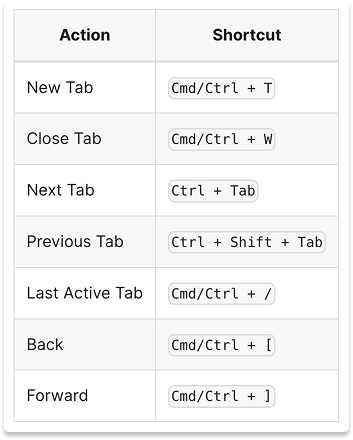
Here’s the full set of keyboard shortcuts:
Note that desktop tabs are distinct from the Tab panel, which groups panels within a single layout. Desktop tabs operate at the window level, giving each tab its own independent data source and layout. Use both together: Tab panels to organize panels within a view, and desktop tabs to organize entirely separate sessions.
Try it out
Download the latest Foxglove desktop app to try tabs today. They’re available for Linux, Windows, and macOS.
Join our Discord community or follow us on X and LinkedIn to stay up to date on all Foxglove releases.