Depth Image Rendering: PNG Support and RGB Colorization
Visualize compressed depth images as colored 3D point clouds — without stressing your data bus.


The problem
If your robot has a depth camera, you’ve probably wanted to see its output as a 3D point cloud in Foxglove. Since v2.41.0, the 3D panel has supported rendering uncompressed depth images as point clouds, but not all teams publish raw, uncompressed depth images. Uncompressed 16-bit depth frames are large, and streaming them at high frequency can flood your data pipeline with unnecessary bandwidth — especially when the data is only needed for visualization, not for the robot’s real-time decision-making. Teams that compress their depth images as PNGs to save bandwidth previously couldn’t visualize them as point clouds in Foxglove.
That meant a tradeoff: compress your depth data and lose the ability to visualize it as a point cloud, or publish it uncompressed and stress your data bus. We’re changing that in v2.47.0 by making depth visualization more flexible and bandwidth-friendly with PNG compression support, RGB colorization, and new color modes for depth images.
What’s new
We’ve shipped three improvements that eliminate this tradeoff and make depth visualization significantly more useful.
PNG compressed depth image support
The 3D panel now accepts 16-bit grayscale PNG compressed depth images in addition to uncompressed formats. If you’re publishing depth data using ROS compressedDepth transport (via sensor_msgs/CompressedImage with a compressedDepth format string), Foxglove will decode the PNG and render it as a point cloud the same way it already handles uncompressed 16UC1, 32FC1, and other raw encodings.
Depth values in the PNG are interpreted as millimeters along the camera Z axis. No workflow changes needed on your side — just point Foxglove at your existing compressed depth topic, set the render mode to Depth map, and you’ll see a point cloud.
RGB colorization from a sibling image
A monochrome point cloud colored by depth value (like a near-to-far heat map) is useful, but it doesn’t tell you what you’re looking at. You can now colorize depth map point clouds using a sibling RGB image to paint color from the RGB camera onto each 3D point based on its corresponding pixel.
The result: instead of a depth-shaded blob, you get a point cloud that actually looks like the real scene in color.
To set this up, expand the Depth map settings for your depth topic in the 3D panel and choose an RGB topic from the dropdown. All available image topics will appear as options. Select “None” to fall back to distance-based coloring.
For the best results, the depth and RGB images should use the same camera frame, or have matching intrinsics with only a rigid transform between frames. The current implementation does not perform stereo rectification, so there may be subtle colorization artifacts when the sensors are offset with different intrinsics.
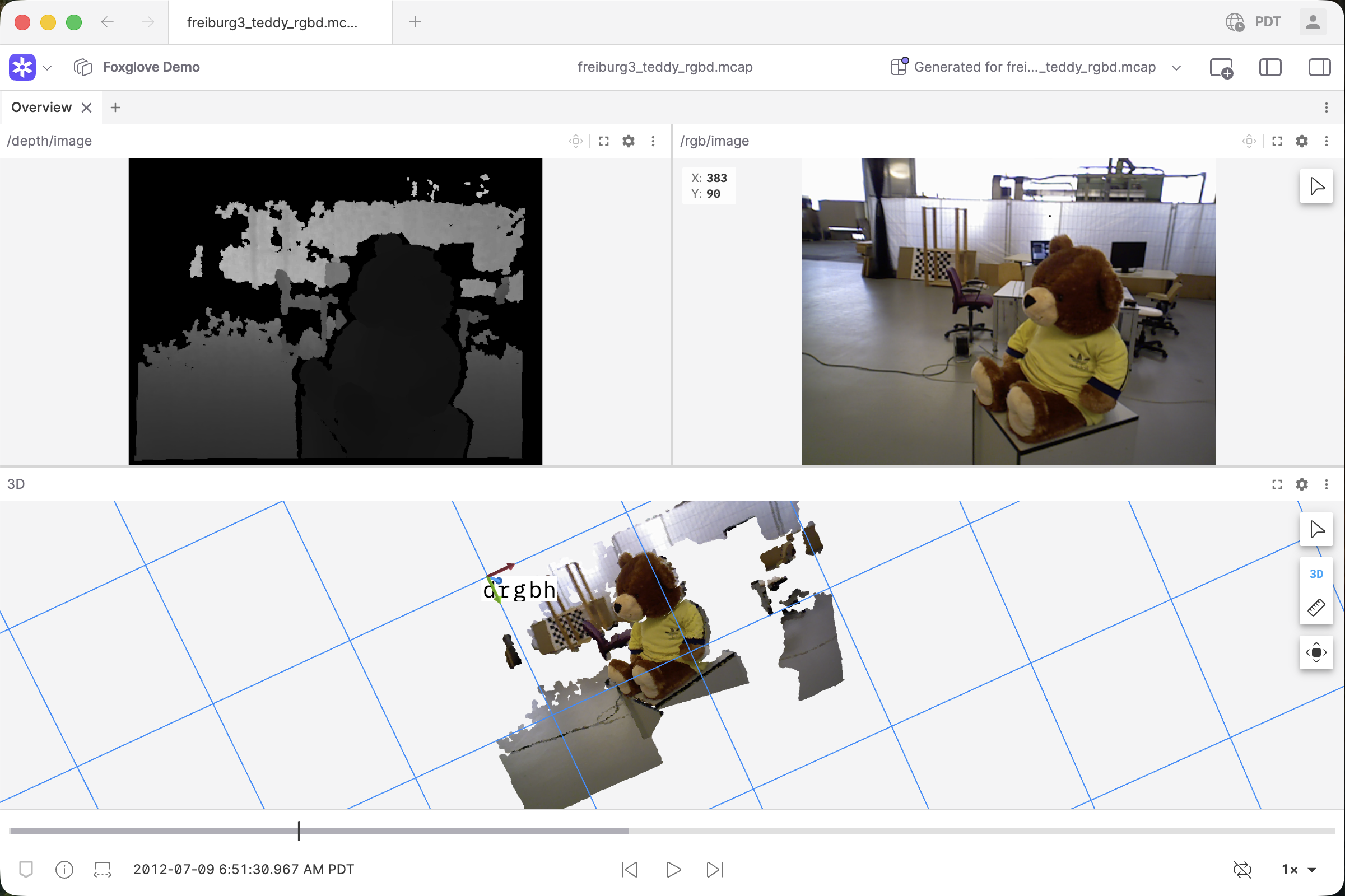
Credit to University of Freiburg for this data!
Image panel: custom color modes for depth encodings
The Image panel now supports color maps, gradient controls, and min/max value scaling for 32FC1 and 8UC1 (mono8) depth images. Previously, these color options were only available for mono16/16UC1.
32FC1 images: Previously, float images were mapped linearly from [0, 1] to grayscale with no range or color map control, so depth values outside that range appeared as solid white or black. Now you can set a custom value range and apply color maps like Turbo or Rainbow. Non-finite values (NaN, Inf) render as black instead of causing artifacts.
8UC1 / mono8 images: Previously mapped directly to grayscale with no color options. Now supports the same color map, gradient, and min/max scaling controls as 16-bit depth images.
This is useful when you want to inspect depth values directly in the Image panel in 2D. For example, verifying depth range and coverage before looking at the 3D point cloud, or when you’re working with depth data that doesn’t need a full 3D reconstruction.
Why this matters
Before these changes, getting a colored 3D reconstruction of depth camera data in Foxglove required one of two workarounds:
- Publish uncompressed depth images — works, but wastes bandwidth on your robot’s data bus for the sake of visualization.
- Compute the point cloud yourself in your robot’s software pipeline — works, but burns compute resources on the robot’s hot path just so someone can look at the data in Foxglove.
Now, you can publish your depth images as compressed PNGs (saving bandwidth), publish a standard RGB image alongside it, and let Foxglove handle the 3D reconstruction and colorization on the visualization side. No extra compute on your robot, no bandwidth penalty.
How to use it
- Publish a 16-bit grayscale PNG depth image (e.g., via ROS
compressedDepthtransport) and a corresponding camera calibration message. - In the Foxglove 3D panel, enable the depth image topic and set Render mode to Depth map.
- Optionally, publish a sibling RGB image. In the depth topic’s settings, expand the Depth map section and set RGB topic to your RGB image topic for colorization, or select “None” to use distance-based coloring instead.
- For 2D depth visualization, open the depth topic in an Image panel. For
32FC1,8UC1/mono8, and16UC1/mono16 encodings, you can apply color maps (e.g., Turbo, Rainbow), adjust the value range with min/max scaling, and use gradient controls to highlight the depth ranges you care about.
For full details, see the 3D panel documentation and Image panel documentation.