
Automations
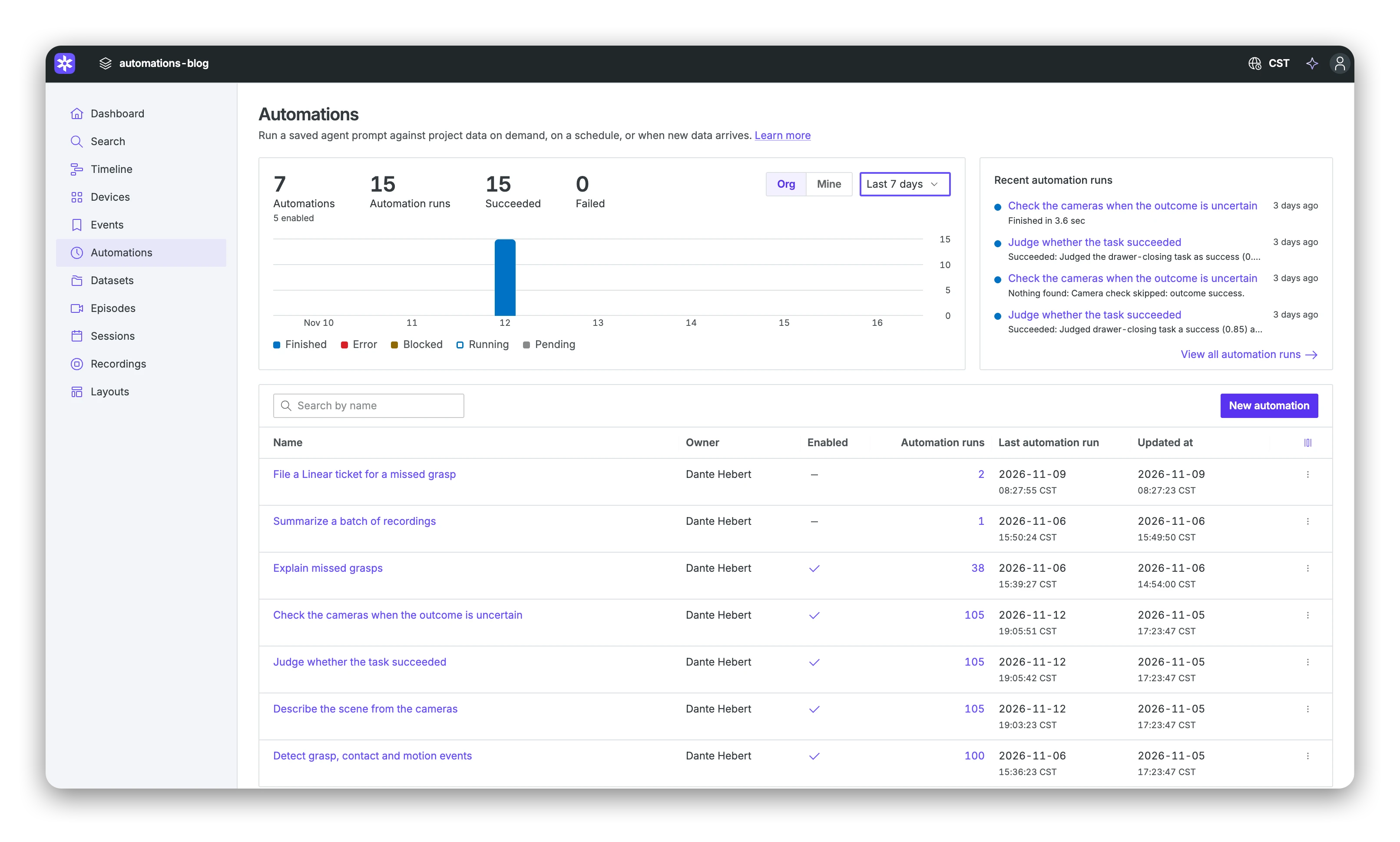
Run a prompt when new robot data arrives.
01
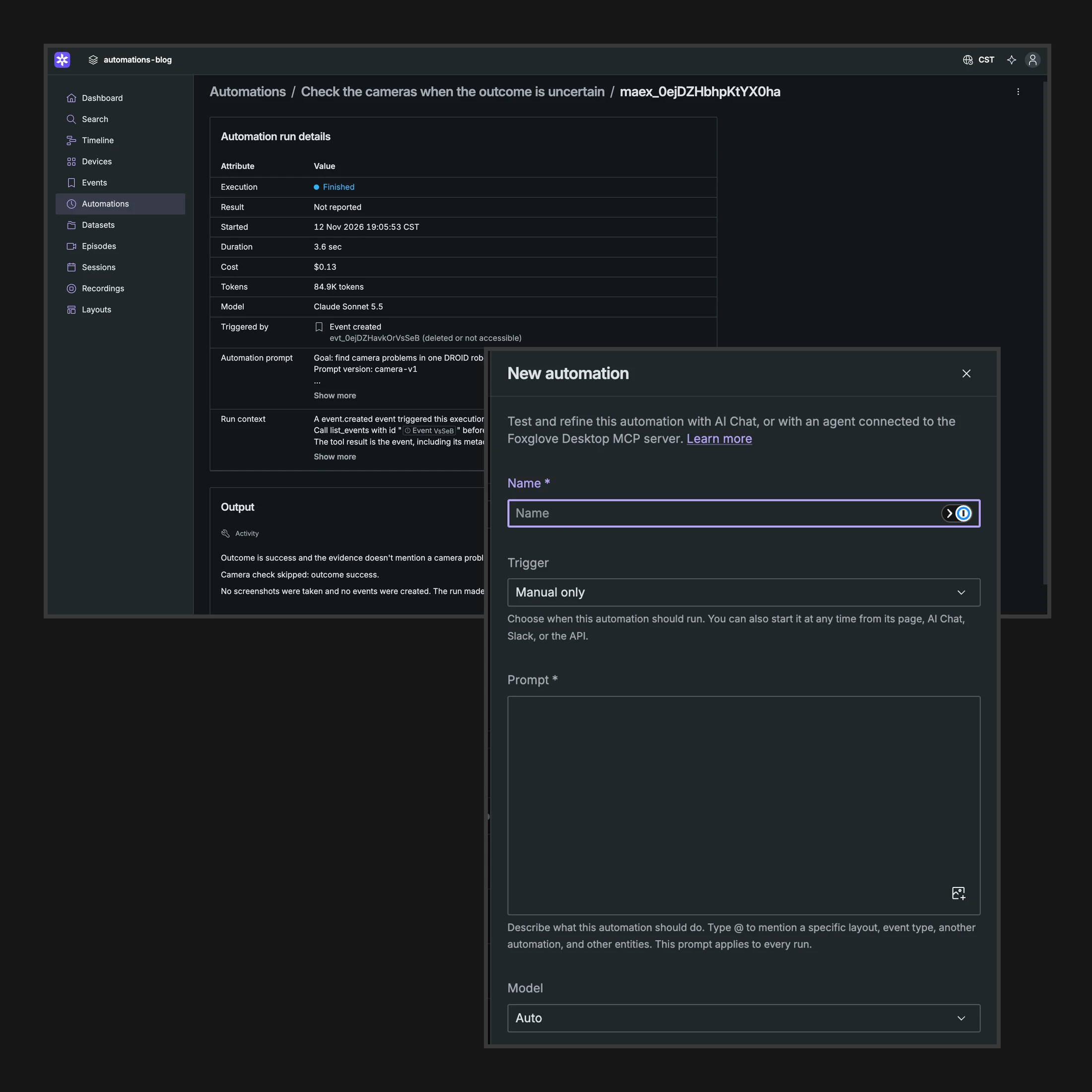
Create events on ingestion, then triage and route them.
When a recording finishes import, the run creates an event for each match. When an event is created, it opens the named layout and reports what best explains it.
02
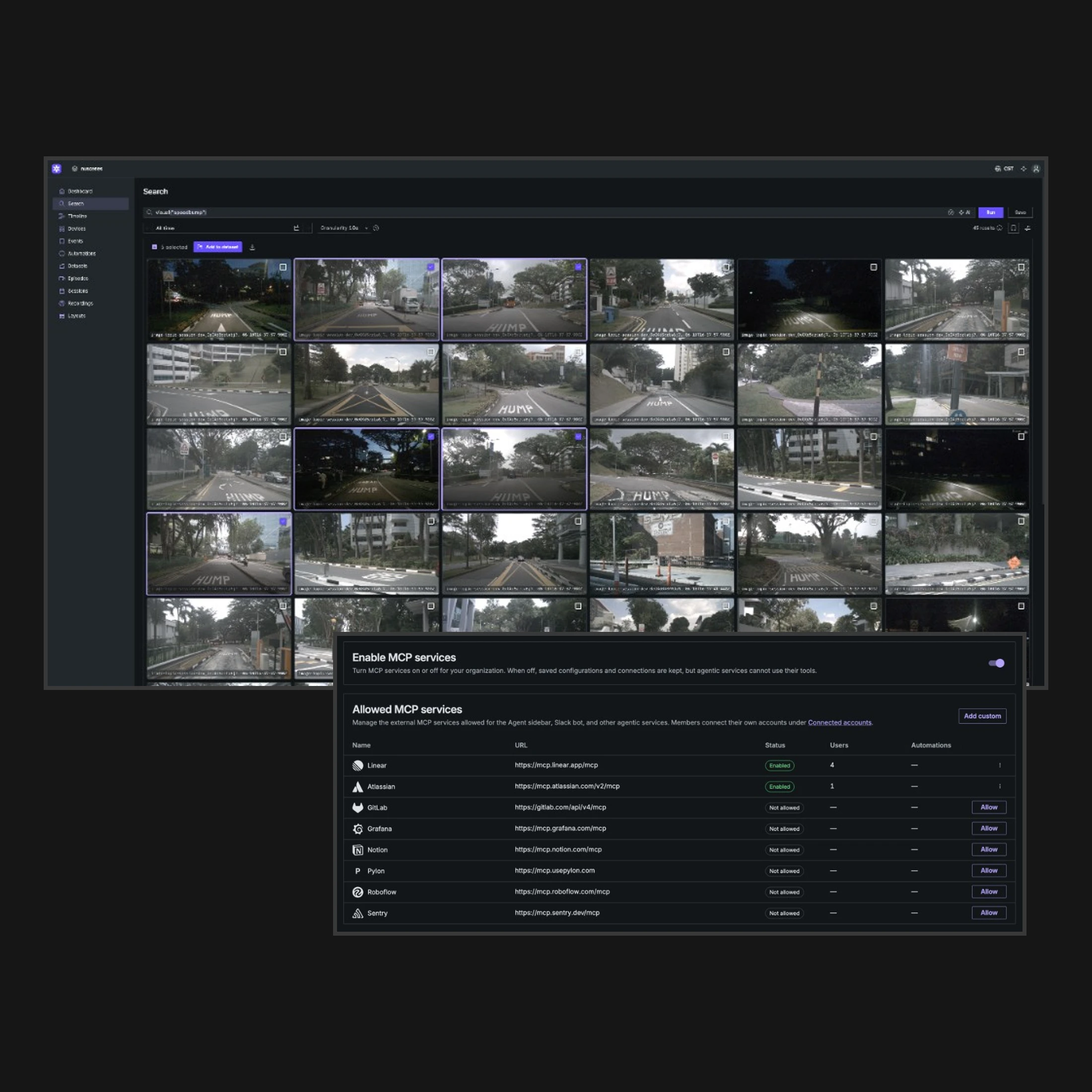
Find scenarios and connect to your tools with external MCP.
A run can search a recording for the moments a prompt describes, then create a dataset and add those episodes to a draft. An engineer reviews the draft and commits the version. A later automation can start from those moments, check the cameras and telemetry, and file a ticket through the external MCP services the owner allowed, with screenshots and the reasoning attached.
How it works.
Where is Automations available?
Automations is available on Pro and Enterprise, on Foxglove-hosted projects and on Bring Your Own Storage. It is not available for on-premises Primary Sites. Creating, editing, or running an automation requires a developer seat. Runs are refused while the agent sidebar is turned off for the organization.
How is a run billed?
An Automations run counts toward its owner’s included AI usage. Usage above that is the model provider’s token cost plus a Foxglove fee of $1.00 per million tokens. That fee applies to Automations runs. The agent sidebar and the Slack agent are billed at cost, with no markup. Each automation uses Auto, Claude Sonnet 5.5, or Claude Opus 5.5. A run stops after 58 minutes, or at about $50 of estimated cost, and each automation can run 1,000 times per UTC month. See pricing for the included amount.
What can a run not do?
A run cannot create or change layouts, user scripts, or automations, commit a dataset version, or reach data outside its project. A new event, or a new time range on an existing event, has to overlap a recording on that event’s device. Only the owner can edit the automation, including which external services it may call.
How do chained automations work?
Split a job into steps that each answer one question. An annotator can flag missed grasps as events, and a reviewer can start from those events, check the cameras and gripper, and file an issue. A chain stays in the same project and can go three levels past the run that started it. Past that, the next trigger match is saved as a failed run, and a direct start is refused. See the Automations docs to get started.