Automating analysis, escalation, and deep dives on robotic data with Foxglove Automations
Automatically review robot data: label every uploaded recording with searchable Events, and create a Linear ticket for every missed grasp.
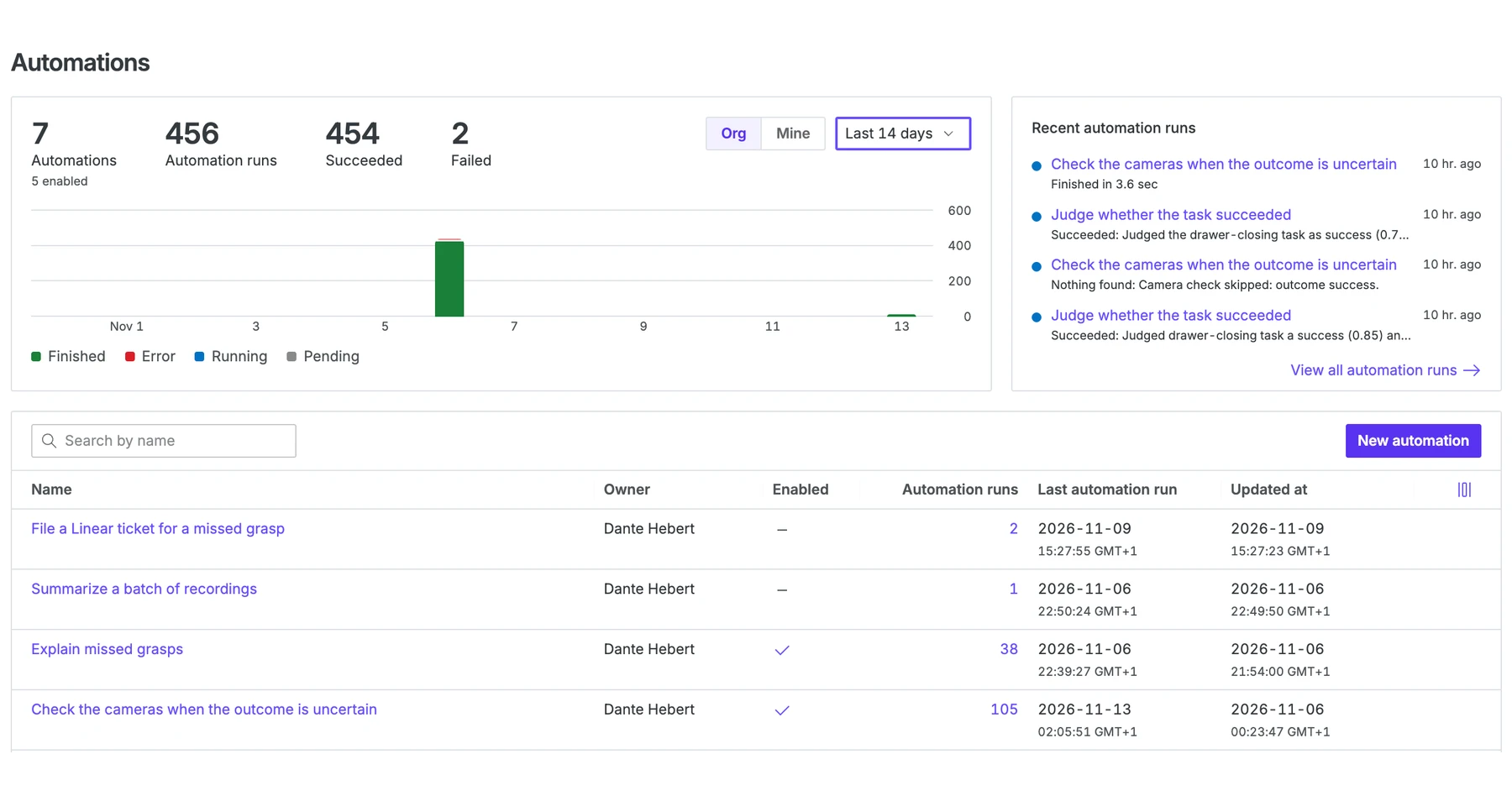

tl;dr: On 100 uploaded robot recordings, a gripper signal flagged 38 missed grasps. Then an Automation checked the cameras and found that 17 were not misses: the gripper had closed on something thin, like a tissue. This guide shows the two chained Automations that did it, from typed Events to a Linear ticket for each miss.
The data
This guide uses DROID, a public, labeled dataset of teleoperated Franka arms (CC BY 4.0). It comes from many robots across many labs and scenes, doing everyday tasks such as putting lids on pots or moving objects into cups. Here, we used 100 episodes converted to MCAP and uploaded to Foxglove. We tuned the prompts on a few example recordings first, then ran them unchanged on the 100.
A DROID recording in Foxglove.
Defining a process your agents can run repeatedly
In Foxglove, an Automation is an agent that runs a prompt you write when a trigger fires, such as a recording being imported or an Event being created. Like the Agent sidebar, it can call Foxglove’s internal tools. It can also integrate with third-party services through any external MCP services you enable.
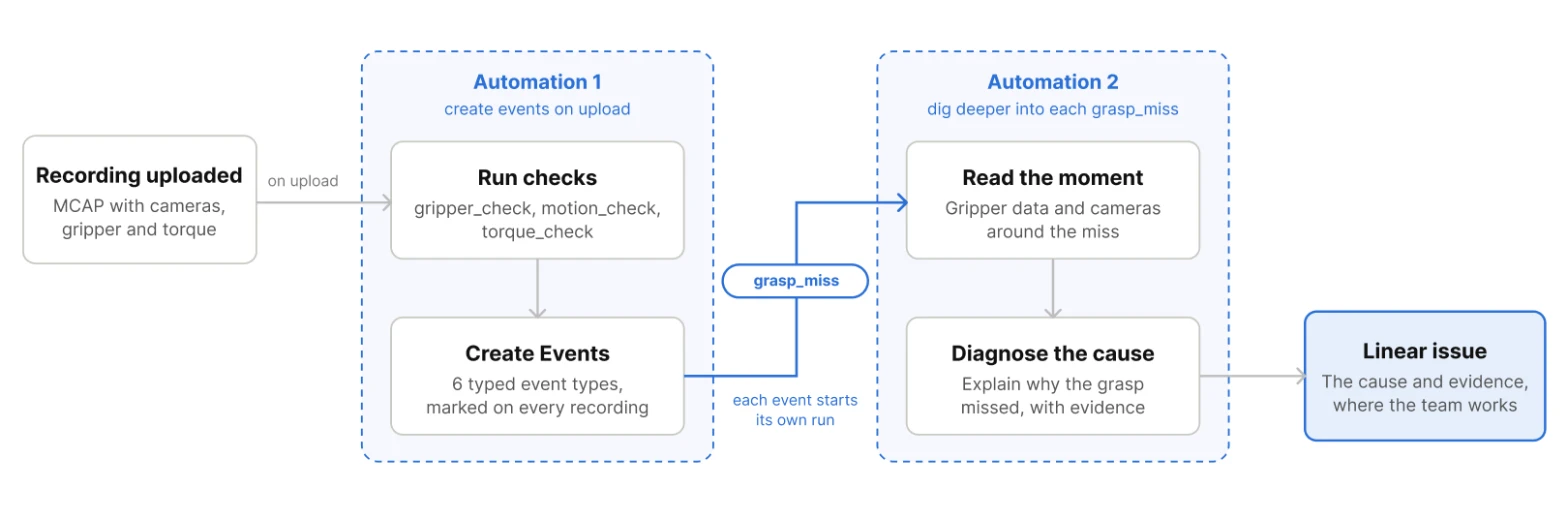
Create Events on upload, then dig deeper into each miss
This guide takes an in-depth look at one chained pair. The first Automation turns each upload into Events. Each grasp_miss Event starts the second Automation, which looks deeper and files a ticket.
Step 1: Define the Event types
This workflow is built on Foxglove’s typed Events, which mark important moments in time in a device’s data. Start by deciding which properties turn a moment into a useful record, then create an Event type with those properties in the project’s settings. This guide uses six, and the first Automation looks for all six in every recording. Typed properties let you and your team search and compare Events across every recording, so add a property for each value you’ll want to filter or sort by later, like how far the gripper closed on a miss or how many Nm a torque spike reached.
| Event type | Properties | What it flags |
|---|---|---|
| grasp_attempt | peakClosure | Each grasp (gripper closes past 0.3), the baseline for grasp success rate |
| grasp_miss | closure | The gripper closed all the way (position 0.95 or more, where 1.0 is fully shut) with nothing between the fingers. Marks each attempt where the object’s position was misjudged. |
| object_drop | heldPosition, finalPosition | Held 0.5 seconds, then snapped shut; flags weak grips and slips |
| contact_spike | joint, deviationNm, thresholdNm | Torque jumps 8 Nm from its median; finds collisions and unexpected contact |
| hesitation | durationS, maxSpeedMps | Arm still for 2 seconds mid-task; uncertain moments and idle time to trim |
| task_phase | taskPhase | Reach, grasp, transport, release, retreat; compare and slice data by phase |
Step 2: Create user scripts in a layout to define what to look for
Before anything can be flagged, you need to define what you’re looking for. Raw signals don’t say that directly: a gripper position of 0.97 could be a firm grasp or a closed, empty hand. So use user scripts in a layout to write those definitions down as code.
A user script runs on every message and publishes its result as a new, derived topic alongside the cameras and plots. Each script defines one thing you care about, such as what counts as a grasp, a miss or a contact spike, so every recording is checked against the same definitions and the agent reads the answers instead of working them out itself. If you can create a layout and user script which reliably shows the results you’re interested in, your Automation will be able to act on them reliably.
This guide uses three scripts which transform raw data into actionable derived topics:
- gripper_check marks the exact sample where each grasp starts, ends, misses or drops.
- motion_check publishes the end-effector speed and how long the arm has been still.
- torque_check lists any joint whose torque is more than 8 Nm from its recent median.
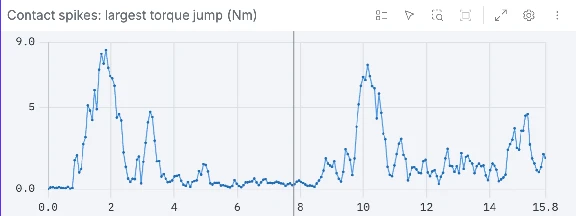
The torque_check user script’s output over one recording: the largest torque jump from any joint, in Nm.
The scripts tell the Automation where to look, and the cameras and other data show what happened there. Together they let the Automation understand each Event, and keep every run short and every Event accurate.
Step 3: Create an Automation that generates Events on upload
Next, create an Automation, here called “Detect grasp, contact and motion events”, with the trigger Recording imported. Its prompt tells the agent to open the new recording with the layout, read the three script topics from start to end, and create one Event per flag.
How we wrote the prompt
We wrote the prompt by running the Automation manually on sample recordings, checking the Events it created, and adjusting the prompt until the results were consistent. A few changes made the biggest difference:
- Move the math into user scripts. Our first version asked the agent to compute rolling medians itself, and it missed a contact spike just over the threshold. With the scripts doing the math, the agent only reads the answers.
- Check for complete data. The prompt checks that every message it asked for came back, and stops the run instead of creating Events from incomplete data.
- Give it the IDs it needs. Putting the Event type IDs in the prompt, and using absolute timestamps for every read, removed extra lookup steps.
The full prompt is in Appendix 1.
The Automation runs headlessly in the background, with no one watching. A minute or two after each upload, the recording’s timeline shows its Events, and each one links back to that moment.
A grasp miss, created automatically when the recording is uploaded.
Step 4: Connect Linear
The second Automation files tickets in Linear through an MCP service, so set up Linear before you create it. An admin allows Linear under Allowed MCP services in the organization’s settings, and you connect your own Linear account under Connected accounts. When you create or edit an Automation, its MCP servers section lists the services available to you, and you choose which of their tools it can call.
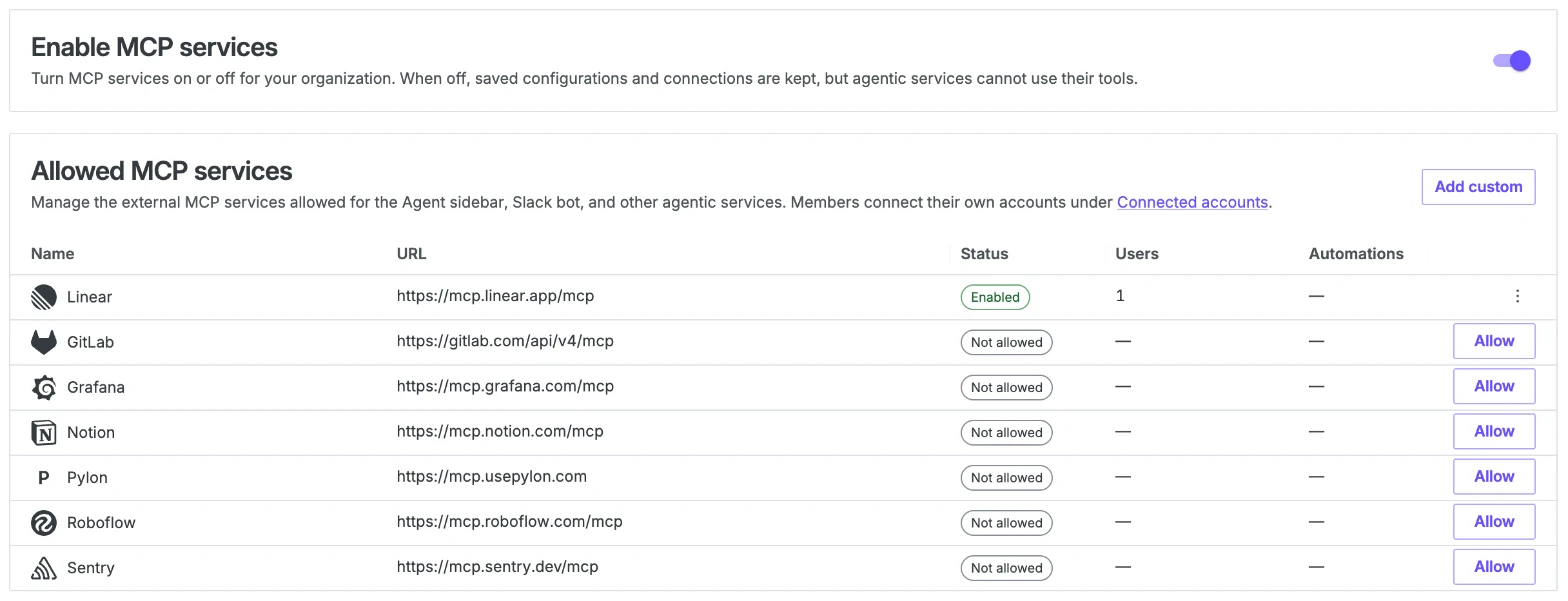
Allowed MCP services in the organization’s settings. Once Linear is allowed and you’ve connected your account, it appears in the MCP servers section when you edit an Automation.
Step 5: Create an Automation that files a Linear ticket for each missed grasp
An Event is a good place to start, but someone still has to work out what went wrong and track the fix. So create a second Automation, here called “File a Linear ticket for a missed grasp”, with the trigger Event created filtered to the grasp_miss Event type. Each new miss starts one run. In its MCP servers section, allow it to use Linear’s tools, such as creating and updating issues.
What the prompt tells the agent to do
Check the gripper data
The agent reads the grasp_miss Event, the task the operator was given, and the gripper data around the miss: where the gripper was told to go and where it actually went. It’s looking for one thing: whether anything was between the fingers when they closed. If the data it reads doesn’t match the Event, the ticket says so.
Then it compares the two signals. If the measured position follows the command up to about 1.0, nothing is between the fingers. If it stops short of the command, something is holding them open.
Review the cameras
The gripper data says that a grasp missed, but not why. It can’t show where the object was, whether the fingers came in too high or off to one side, or what the operator did next. So the agent opens the recording with the review layout and captures it before the miss, at the miss, after it, and during any retry. Each capture shows all three cameras next to the gripper plot at the same moment, and the cameras supply the context the plot can’t: where the object sat, how the fingers approached it, and whether it moved. From the signals and the cameras together, the agent decides the cause.
Write the ticket
Every ticket has the same shape: a title naming the robot, cause, recording, and time, then a summary, the evidence, a details table, and a suggested next step.
Attach the screenshots
The prompt tells the agent to capture each screenshot in Foxglove, which gives it a shareable link. The agent attaches those links to the Linear issue and lists them in the Evidence section. Anyone with access to the project can open them.
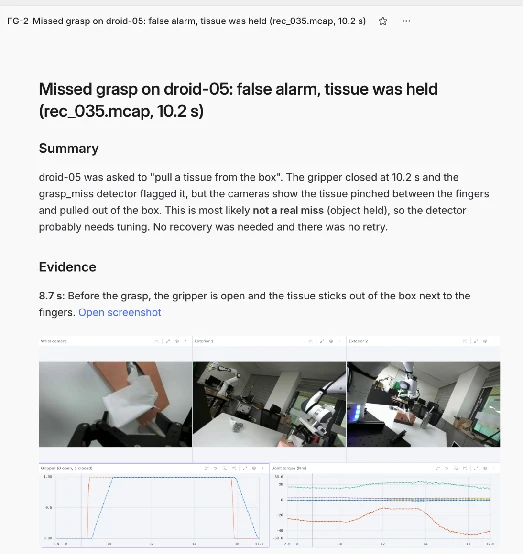
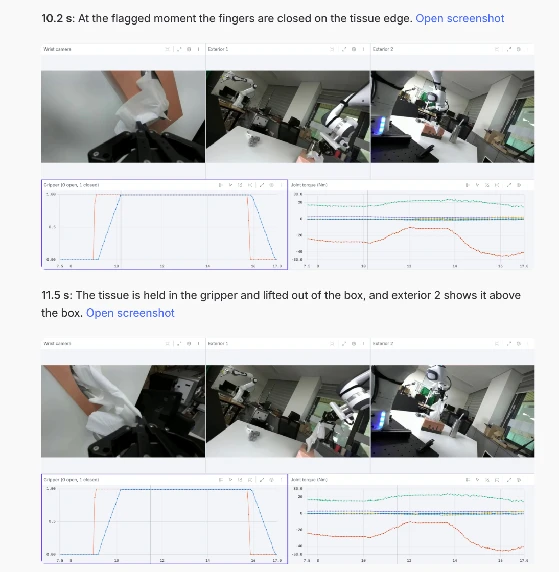
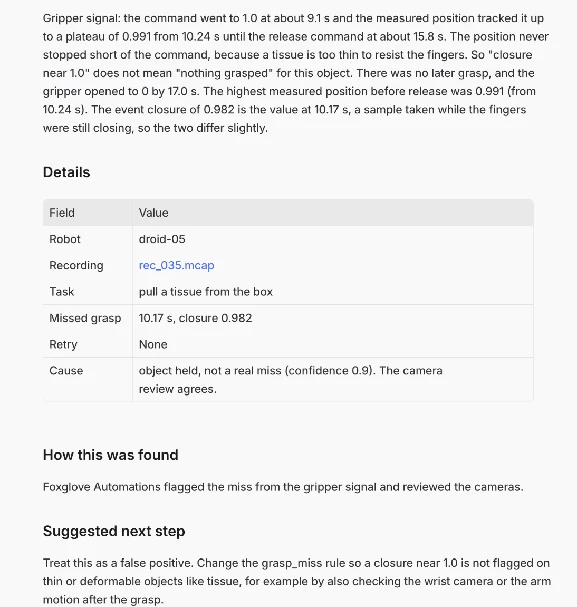
A Linear ticket filed by the Automation through the Linear MCP service. The gripper signal flagged a missed grasp, and the camera review shows the tissue held between the fingers.
Results
We uploaded all 100 recordings at once, and the Automations reviewed each one as it was imported. The gripper signal flagged 38 missed grasps, and the camera review found that 17 weren’t misses: the gripper had closed on something thin, like a tissue or a cloth.
The reference mixes hand labels and scripted thresholds. It uses the same gripper rule as the Automation, so it also counts the 17 tissue grasps as misses. We did not score task_phase Events.
The Automation matched all 204 reference Events: 202 within 0.1 s, plus the two object drops, which start slightly earlier because the prompt and the reference define the start of the hold differently. It also flagged one extra hesitation.
| Event | Automation | Reference |
|---|---|---|
| grasp_attempt | 123 | 123 |
| grasp_miss | 38 | 38 |
| contact_spike | 27 | 27 |
| hesitation | 15 | 14 |
| object_drop | 2 | 2 |
From upload to the last Linear ticket, the whole review of 100 recordings took 17 minutes. Multiple Automations run in parallel across the recordings, and the output is curated data: the Events you care about on every recording, plus an in-depth analysis of each miss delivered straight into your workflow.
Before and after
Without Automations, an engineer reviews each recording by hand, labels every Event, digs into anomalies like a missed grasp, and then writes the ticket. Most teams we talk to don’t have the engineering time for that, so most of their data goes unexamined. Automations runs the same review on every upload, so no recording gets skipped.
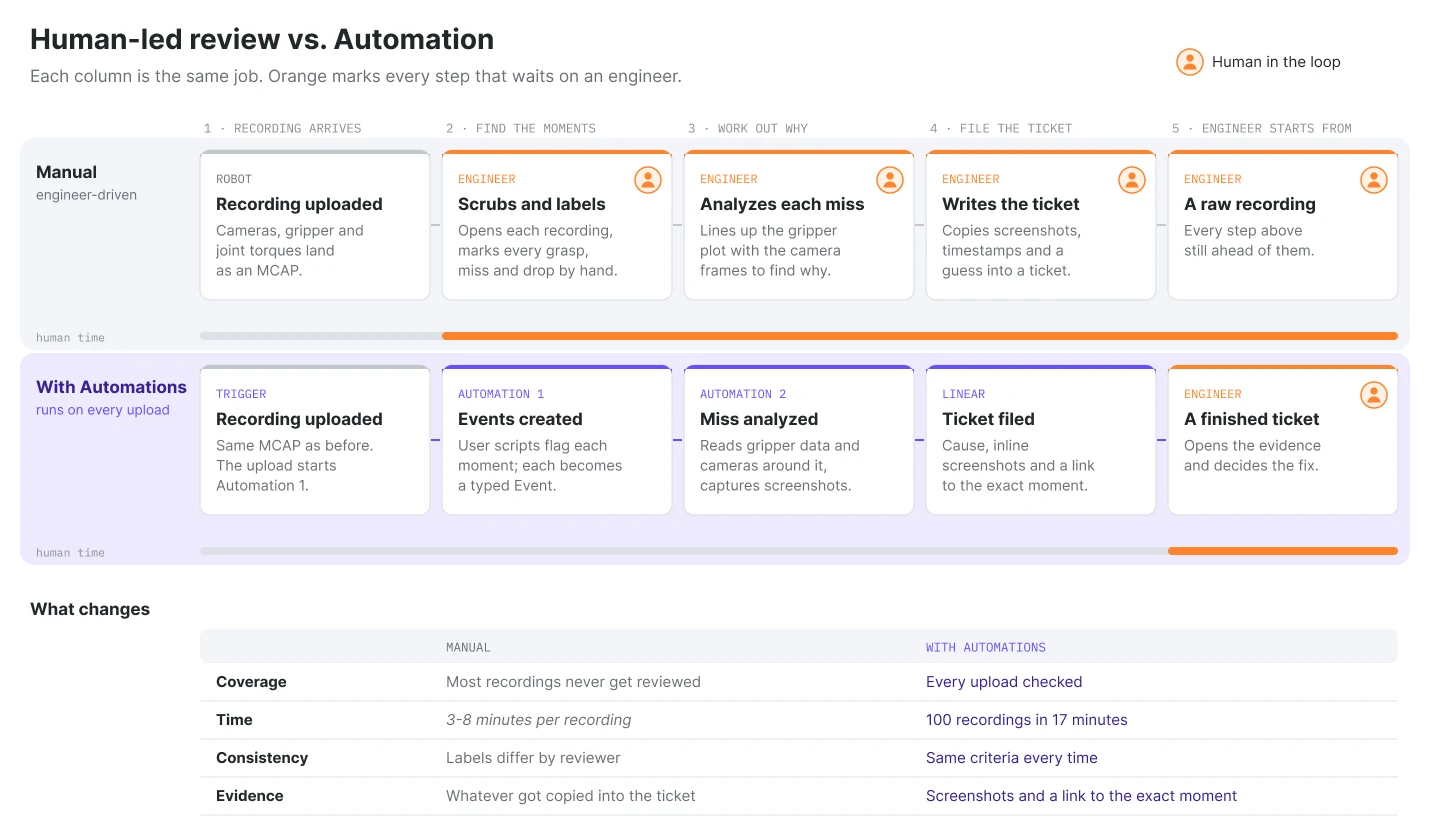
Each missed grasp is analyzed from the gripper data and the cameras, and arrives as a Linear ticket with the likely cause and the evidence attached. The engineer’s job shifts from finding problems to deciding what to do about them.
What’s next
The same pattern works for any Event: a script finds the moment, the first Automation records it, and an Event-triggered Automation does the deeper analysis and sends the result where your team works.
Each Automation can also start the next, so the chain can keep going further. From the same Events you could:
- sort each miss into your own failure-mode categories and route it to the team that owns it;
- check a new miss against past failures, then link it to an existing ticket or flag it as new;
- send a weekly fleet health report with miss rates by robot, hardware revision or release;
- compare a new software version against the last one and flag the runs that got worse;
- mine every recording for a specific edge case and collect the matches for review or training.
The Events also make the data easier to train on. Because every grasp, miss, and task phase is a searchable Event, you can find the recordings and moments you want, such as clean grasps without a miss, and add them to a Foxglove dataset for further training. See Training a Bimanual Policy on Foxglove Datasets for that side of the workflow.
Resources
- Foxglove Automations docs
- Foxglove Events docs
- The Automation prompts are in Appendix 1
- Layout for this work (contains all mentioned user scripts)
- DROID dataset (Khazatsky et al., 2024), CC BY 4.0, converted to MCAP and annotated by Foxglove.
Appendix 1. Automation Prompts
Below, you will find the prompts and the settings we’ve used for each of the prompts so you can replicate our runs more easily.
Automation 1: Detect grasp, contact and motion events
- Trigger: Recording imported
- MCP services: none
- Layout: “DROID review”, with the gripper_check, motion_check and torque_check user scripts (download the layout)
Replace the <...> placeholders with your own layout name and Event type IDs.
Goal: create Events for one DROID robot recording from the robot data. Do not look at the cameras.

Recording: the recording that triggered this run.

The layout "<layout name>" contains user scripts that compute every check on every sample and publish the results as topics. Read those topics and turn their flags into Events. Do not do the arithmetic yourself.

Setup
1. Get the recording's start and end time, and use absolute timestamps for every read.
2. Open the recording with the layout "<layout name>". If you cannot, stop and report the run as failed.
3. Read these topics over the whole recording, from the recording start to the recording end, with these fields:
   - /studio_script/gripper_check: position, marker, attemptStart, attemptPeak, longestHoldInClosureS, meanHoldPosition
   - /studio_script/motion_check: speedMps, still, stillS, stillStart
   - /studio_script/torque_check: over (one entry per joint that is over its threshold on that sample: joint, deviationNm, thresholdNm, spike), anySpike
4. Check that every message you asked for came back. If a read is incomplete, or a topic is missing or empty, create no Events and report the run as failed.

Event type IDs:
- grasp_attempt: <event type id>
- grasp_miss: <event type id>
- object_drop: <event type id>
- hesitation: <event type id>
- contact_spike: <event type id>
- task_phase: <event type id>

Turn the flags into Events. Copy values from the topics exactly; do not recompute them.
1. grasp_attempt: one Event per gripper_check message with marker = attempt_start. Start = that message's attemptStart. End = the time of the next message with marker = attempt_end (or the recording end if there is none). peakClosure = attemptPeak on the last message before that end.
2. grasp_miss: one Event at the time of each message with marker = grasp_miss. closure = that message's position.
3. object_drop: for each message with marker = object_drop, an Event from (that message's time minus its longestHoldInClosureS) to that message's time. heldPosition = meanHoldPosition; finalPosition = position.
4. hesitation: each stretch of consecutive motion_check messages with still = true. Clip the stretch so it starts no earlier than 1 s after the recording start and ends no later than 1 s before the recording end. Create the Event only if the clipped stretch is at least 2 s long. durationS = clipped length in seconds; maxSpeedMps = highest speedMps in the clipped stretch.
5. contact_spike: for each joint j (1-7), each run of consecutive torque_check messages whose over list contains joint j, where at least one of those entries has spike = true. The Event spans the run. joint = j; deviationNm = largest deviationNm for joint j in the run; thresholdNm = thresholdNm for joint j on the run's first message.
6. task_phase: split the recording into phases from the gripper_check position and motion_check speed, with taskPhase = reach (before the first grasp attempt), grasp (gripper closing), transport (gripper closed and arm moving), release (gripper opening), retreat (after the last release).

Finish with a one-line count of Events created per type.
Automation 2: File a Linear ticket for a missed grasp
- Trigger: Event created, filtered to the grasp_miss Event type
- MCP services: Linear (all tools)
- Layout: “DROID review”
Replace the <...> placeholders with your own Linear team and layout name.
Goal: file one Linear ticket that explains a missed grasp in a DROID robot recording, with screenshots and evidence a robotics engineer can act on.

Input: the grasp_miss Event that triggered this run. Create one issue in the Linear team "<team name>", priority Low.

Step 1: gather the facts.
- Read the grasp_miss Event: its recording, device, start time and closure.
- Read /task/instruction for the task.
- Read every /robot/gripper message from 3 s before to 8 s after the miss, with both the measured position and the commanded position. Check that every message came back.
- Report the highest measured position just before the release and its time. It must agree with the Event's closure value; if it does not, say so and quote both. Then say whether the position tracked the command up to about 1.0 (no contact) or stopped short of the command (something resisted the fingers).
- Find the next grasp after the miss, if any, and the value where its position settles while the command is at 1.0.

Step 2: look at the cameras.
- Open the recording with the layout "<layout name>". It shows the wrist camera, two exterior cameras and a gripper plot.
- Take screenshots of the whole layout at: about 1.5 s before the miss, at the miss, about 1.3 s after the miss, and in the middle of the next grasp if there is one.
- From the screenshots, decide the cause: misaligned approach (closed beside, short of or past the object), slip (touched then slid out), wrong object, collision, object held (not a real miss), or other.

Step 3: write the ticket.
- Title: "Missed grasp on <device>: <cause in a few plain words> (<recording name>, <time> s)".
- Description, in this order:
  - Summary: two or three sentences: what was being grasped, when it missed, the likely cause, and whether the operator recovered.
  - Evidence: the screenshots in time order, each with the time in bold, one sentence on what it shows, and a link to the screenshot. Then one short paragraph on the gripper signal (position against command, and where the retry settles).
  - Details: a two-column table with robot, recording (with a link to open it in Foxglove at the miss time), task, missed grasp time and closure, retry, and cause.
  - How this was found: one sentence saying Foxglove Automations flagged the miss and reviewed the cameras.
  - Suggested next step: one or two sentences for the robot or teleop team.
- Attach each screenshot link to the issue, titled "<time> s: <what it shows>".
- Plain, specific language. Times are seconds from the recording start.

Do not create, change or delete any Foxglove Events. Final answer: the Linear issue identifier and link, and anything you could not do.